
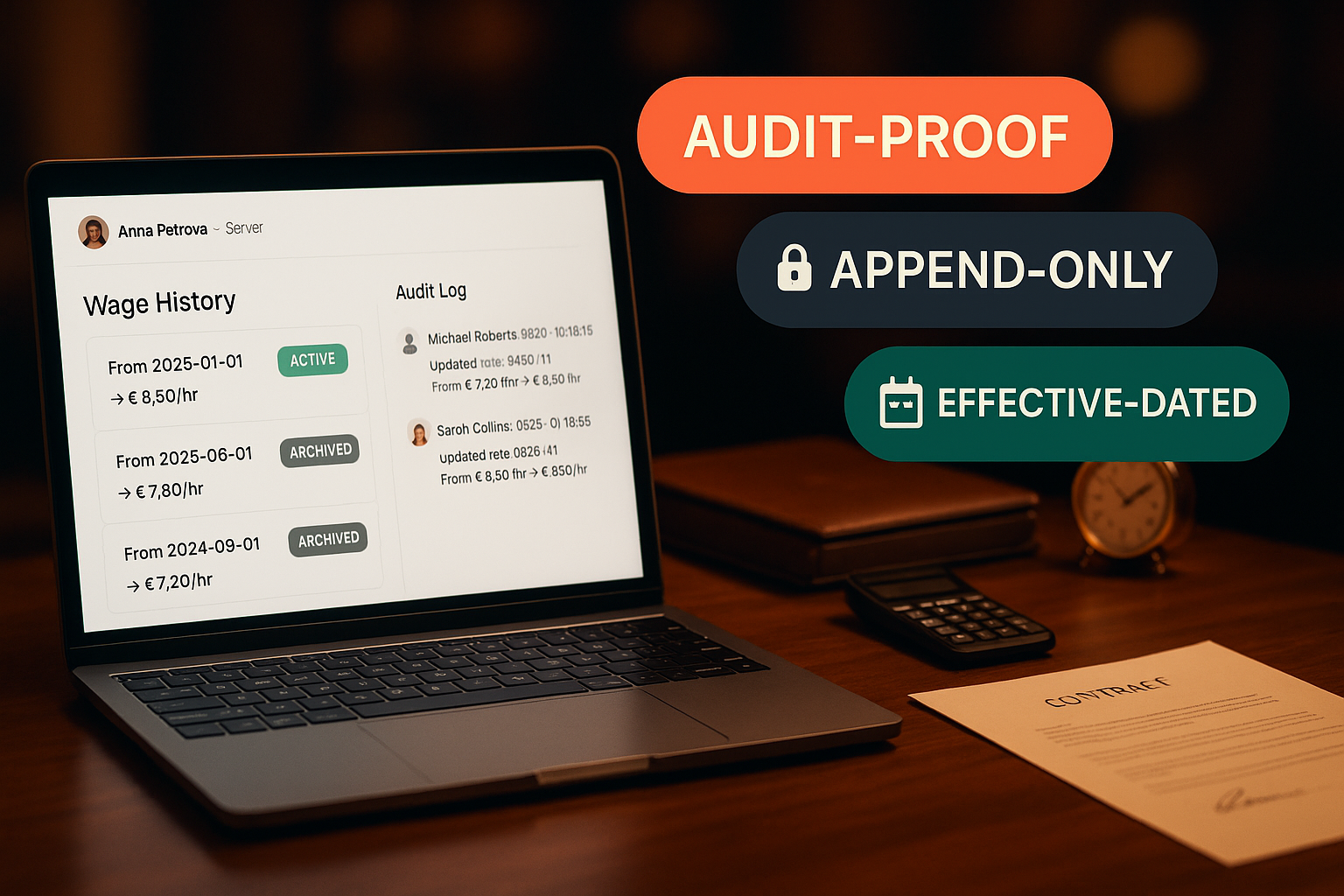
Wage Tracking — Append-only history, geofenced clock-in, ready-to-import timesheets
Set hourly rates per staff member, let them clock in from their phone with optional location verification, and export the timesheet to CSV or XLSX in one click. Every wage change is versioned; every clock event is append-only; every adjustment leaves an audit trail.
What is wage tracking in Ordering.Tools?
Wage tracking turns the Staff module into the source of truth for what each team member earns and what they actually worked. Set an hourly rate for each staff member; new rates supersede old ones with effective-from dates so the history stays clean. Staff clock in from the mobile waiter shell — optionally verified by Haversine distance against the venue's GPS coordinates. Timesheet aggregation joins clocked minutes × the wage in effect at that time and produces a CSV or XLSX you can hand to your accountant.
The whole pipeline is append-only. Wages are versioned (effectiveFrom / effectiveUntil) — you never UPDATE a row, you supersede it. Clock events are immutable — manager edits write a new MANUAL_ADJUST row referencing the original, the original is preserved verbatim. This makes labour-dispute defence trivial: every number on a payslip can be re-derived from the underlying audit trail months later.
Why this is the wage layer your accountant will trust
Single venue currency, no surprises
Every wage row stores cents in the venue's currency — no per-row currency column, no exchange-rate drift, no confusion when a staff member transfers between venues. A multi-venue worker has multiple wage rows, one per venue, in each venue's own currency.
Geofenced clock-in (never blocking)
When the venue has lat/lng + a non-zero clockInRadiusMeters, the clock event records the device coordinates, computes Haversine distance to the venue, and flags geofenceOk. We never refuse a clock-in over GPS drift — we record the truth and surface flagged events for manager review.
5-minute undo on wage changes
Type 1500 instead of 15.00? You have 5 minutes to undo — the row hard-deletes only if no ClockEvent has been costed against it yet. Past 5 minutes or once a wage is referenced in a payroll run, the only way forward is a corrective supersede with notes.
CSV and XLSX exports for any payroll software
The timesheet grid exports to CSV or XLSX with userId, username, hourlyRate, hoursWorked, grossPay columns. Pipe it to your accountant's software (Microinvest TRZ, Plus Minus, Ажур L) without manual retyping.
How wage tracking works
Set hourly rates per staff
Open Staff → Wages and click an empty Rate cell for each team member. Save. The save creates a new StaffWage row, marks the previous active row's effectiveUntil to now, and writes a StaffAuditLog entry. Currency follows venue.currency.
Staff clock in from their phone
The mobile waiter shell shows a Clock In/Out button at the top. One tap captures device coordinates (if granted), computes Haversine distance to the venue, records the event, and auto-links to today's scheduled shift if startTime is within 30 minutes.
Manager adjusts events when needed
If a waiter forgot to clock out, open Staff → Audit, find the event, click Adjust. The system creates a new MANUAL_ADJUST row referencing the original (which is preserved). Reason code is required so the next reviewer understands what happened.
Export the timesheet
Open Staff → Timesheets, pick a date range (default: last month), preview the grid, hit CSV or XLSX. The file downloads with the period in the filename and is ready to import into your payroll software.
Wage Tracking — feature deep-dive
Append-only StaffWage with effective dates
Every wage change is a new row. The previous active row gets its effectiveUntil set in the same $transaction. Reading the effective wage at a point in time is a simple WHERE effectiveFrom <= at AND (effectiveUntil IS NULL OR effectiveUntil > at).
- Never UPDATE — always supersede
- 5-minute undo window for typos (when no ClockEvent has been costed)
- Optional role-specific rates (server vs kitchen)
- Notes field captures why the rate changed
Geofenced clock-in via Haversine
Configurable per venue: clockInRadiusMeters = 0 disables the check. Otherwise, every clock event captures device coords, computes the great-circle distance to venue.lat/lng, and stores geofenceOk = (distance <= radius). The check never blocks — it flags.
- Configurable radius per venue (default 100 m)
- Disabled when radius = 0 — useful for venues without precise coords
- Auto-links to today's StaffShiftAssignment if startTime is within 30 min of clock-in
- Warns the manager via web-push when geofenceOk = false (no auto-block)
Append-only ClockEvent with manual adjust
Every clock event is immutable once written. Manager edits create a new MANUAL_ADJUST row pointing at the original via notes + adjustReason. The original is preserved verbatim — labour-dispute defence is built in.
- Kinds: CLOCK_IN, CLOCK_OUT, BREAK_START, BREAK_END
- Source field: MOBILE | KIOSK | MANUAL_ADJUST
- Captures IP + user-agent + device coords for forensic review
- Adjustments require a non-empty reason code
CSV and XLSX timesheet exports
The aggregator joins clocked minutes per staff × the wage in effect at the period end. Exports include userId, username, hourly rate, hours worked, and gross pay. CSV is universal; XLSX uses the same xlsx library that powers other Ordering.Tools exports.
- CSV with proper escaping for comma/quote/newline values
- XLSX with native number cells (not strings) — accountants can pivot
- Filename embeds the period (timesheet-YYYY-MM-DD-to-YYYY-MM-DD.ext)
- Per-user filter when you need a single staff member's sheet
Where wage tracking earns its keep
Monthly payroll without a spreadsheet
End of the month: open Staff → Timesheets, select last calendar month, hit XLSX, hand the file to your accountant. The previous Excel-sheet-from-the-paper-clock workflow took 4 hours; this takes 30 seconds.
Forgotten clock-out
Anna left at 23:00 but forgot to clock out and the system auto-rolled her shift to midnight. Open the audit log, find the CLOCK_OUT-missing pattern, click Adjust on her last event, set the correct time, add reason 'forgot to clock out — confirmed via security camera'. New MANUAL_ADJUST row lands; original is preserved.
Staff transfers between venues
Petar moves from London Pub to Camden venue. He gets a new StaffWage row in Camden's currency (GBP for both, but the data shape supports cross-currency moves). His London Pub history stays intact — every gross-pay calculation against London hours uses London's wage.
Labour dispute defence
A waiter contests a payslip from 6 months ago. Open Staff → Audit, filter by user + date range. Every wage change, every clock event, every manager adjustment is there with the actor's name, the timestamp, and the reason code. Re-derive the gross from raw events in 30 seconds.
Geofence flags a remote clock-in
A staff member clocks in from home 'because they were waiting for a delivery'. The geofenceOk = false flag surfaces in the audit log. You ask, they confirm, you accept it once and move on — or you tell them to clock in only at the venue, with the audit log as the receipt.
Per-role pay (kitchen vs front-of-house)
A staff member who covers both server and kitchen shifts has two StaffWage rows (one with role = SERVER, one with role = KITCHEN). The wage resolver picks the right rate based on the shift role at the time the clock event was costed.
Hours, wages, and clock events that survive scrutiny
Most restaurant POS systems track tips and sales but treat wages as 'someone else's problem'. Ordering.Tools' Staff module closes that gap end-to-end: hourly rates with effective dates, geofenced clock-in, append-only event history, CSV/XLSX exports for any payroll software. The pipeline is designed for the moment a wage gets contested — months later, with the original manager unavailable — and the answer needs to be reproducible from raw rows. That's why we never UPDATE wages or events; only supersede or adjust with audit.
Why append-only beats 'editable'
A staff member contests a payslip. The manager who set their rate has left the company. Without append-only history, you have one row showing the current rate and no way to prove what the rate was on the day of the disputed shift. With append-only, you have effectiveFrom / effectiveUntil pairs that re-derive any past day in one query. Same logic for clock events: a forgotten manual edit overwrites history; a MANUAL_ADJUST row preserves it. The cost of append-only is more rows; the benefit is a defensible audit trail.
Geofenced clock-in: flag, never block
Indoor GPS drift inside concrete buildings means a staff member can be standing at the bar and show 200 metres off. Blocking on geofence guarantees false negatives that end up paged to the manager mid-rush. Flagging instead of blocking captures the truth (geofenceOk = false) without slowing operations: the clock-in goes through, the manager gets a web-push, and the audit log carries the discrepancy for review. Over weeks, the pattern of flagged events surfaces real abuse (clocking in from home) without punishing legitimate workers for indoor GPS noise.
Currency follows the venue, not the worker
A multi-venue chain that pays its London team in GBP and its Camden team in GBP doesn't see the difference. A chain with a Sofia venue (BGN) and a London venue (GBP) does — and the cleanest model is one wage row per (staff, venue) pair, in the venue's currency. That's how Ordering.Tools models it. No exchange rate fields, no FX drift, no 'is this 15 GBP or 15 BGN?' confusion. The wage you see for a venue is what the staff member earns at that venue, period.
Wage tracking your accountant will trust
Set rates, let staff clock in, export to CSV or XLSX. Every row append-only. Premium feature, included in Staff Management.
Related features
Other tools restaurants use alongside this one.
Open a tip pool for a period, define percentage splits per role (60% servers / 30% kitchen / 10% bar), and the platform distributes the total across staff in proportion to their clocked hours in each role. One transaction, one audit row, zero spreadsheets.
Learn morePer-staff dashboards with orders served, average ticket, on-time rate, voided items, and customer feedback — rolled up nightly from your live order data, not from a separate POS export.
Learn moreCompliant report generation for Bulgarian employers — pull hours from clock events, apply the year's official insurance and tax rates, and download files ready for the NRA portal and your bank.
Learn moreUpload once, get notified before they expire. Manager-uploaded only (anti social-engineering); staff see their own copies on their phone; expiry watcher pages you 30/14/3 days out.
Learn more